
Molhaven feature guide
Compound management.
Connected to the work in your lab.
A compound tells you what a substance is. An inventory item tells you which sample you have, how much is left, and where to find it. Molhaven connects those records with purchasing, projects, and the day-to-day work around them.
No credit card required · Free setup and migration help
01 / Compound library
Register the chemistry once. Find it again quickly.
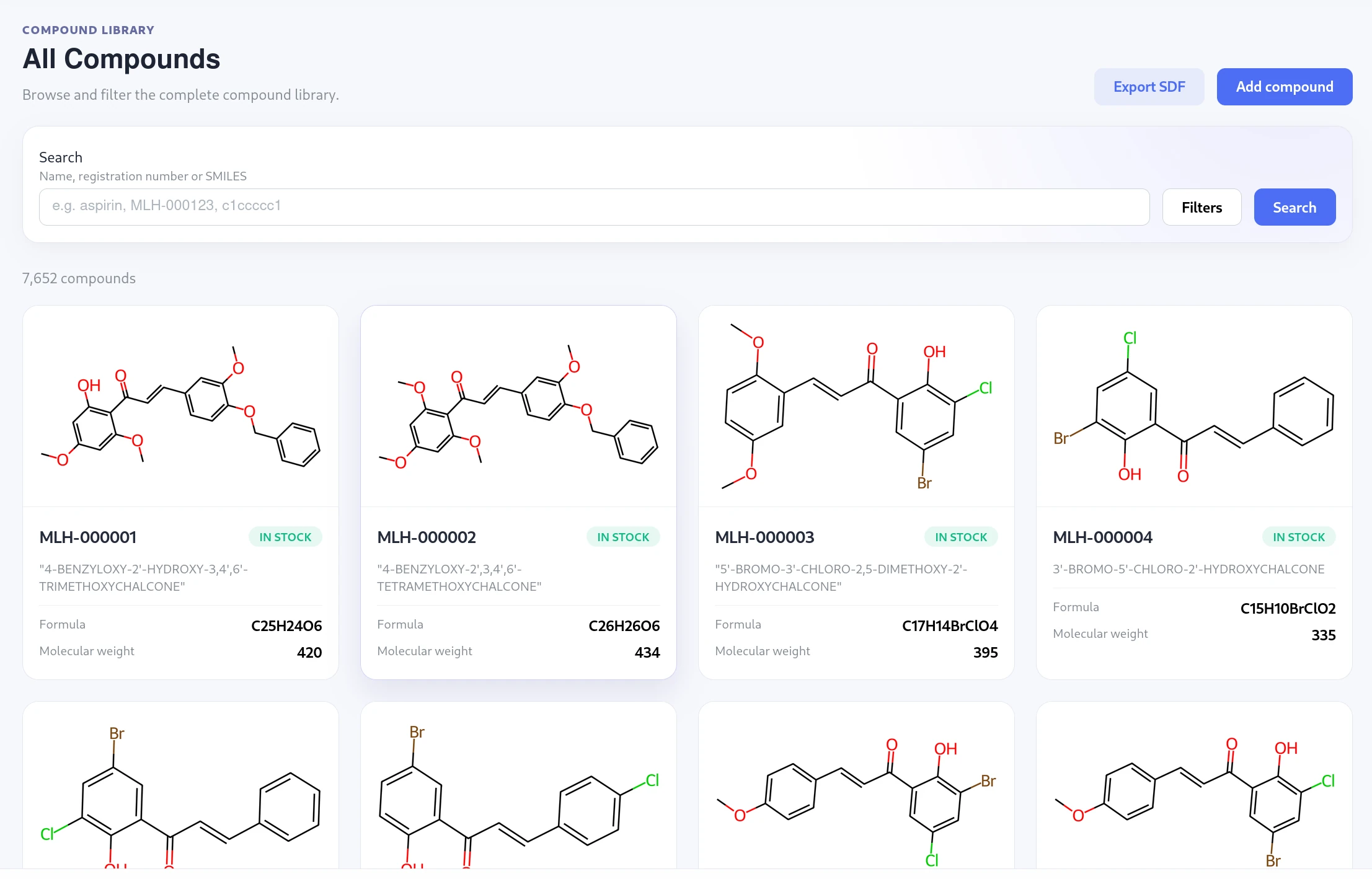
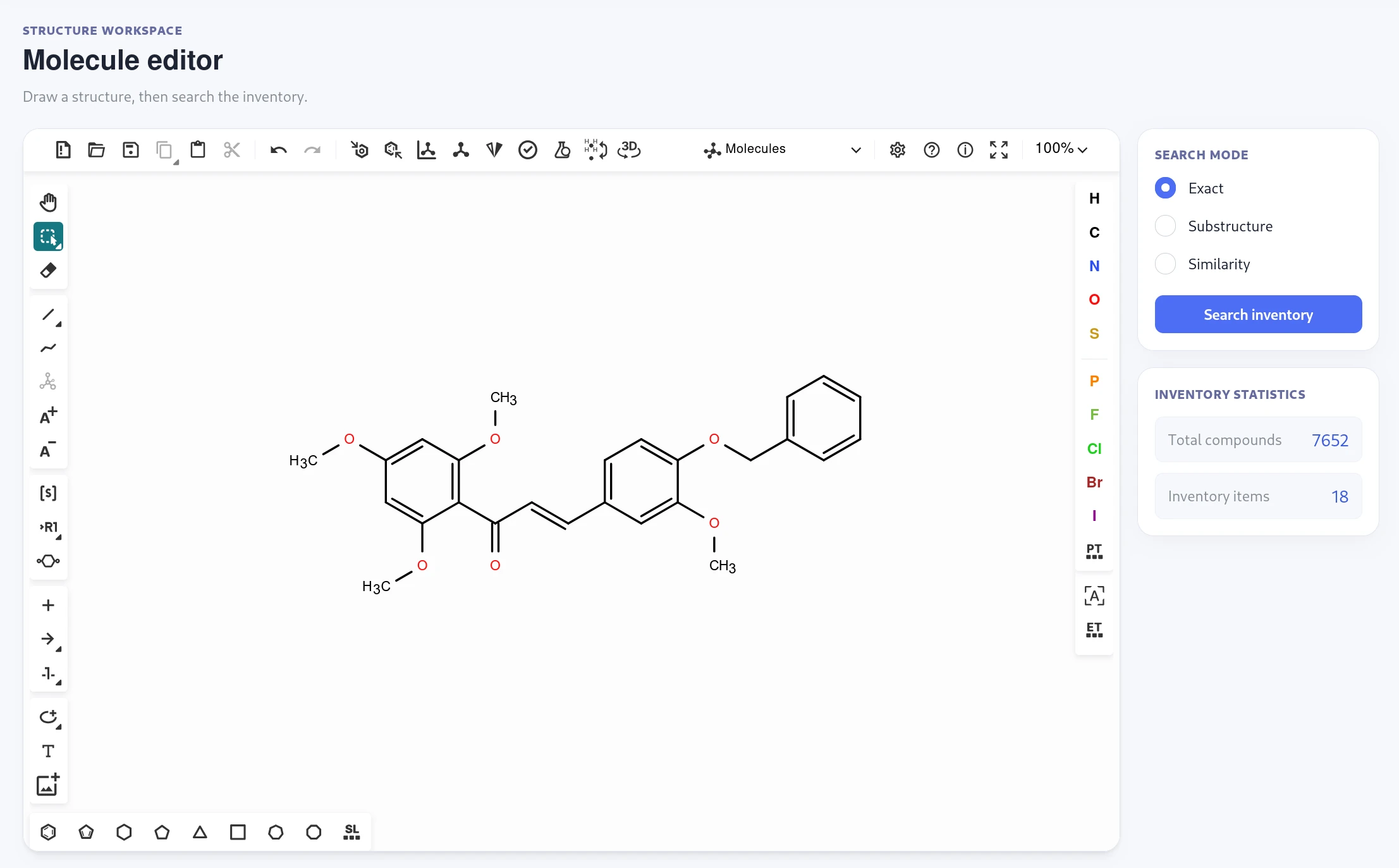
Browse a chemical compound database by name, registration number, or SMILES. If you know the structure instead of the name, draw it in the editor and choose exact, substructure, or similarity search.
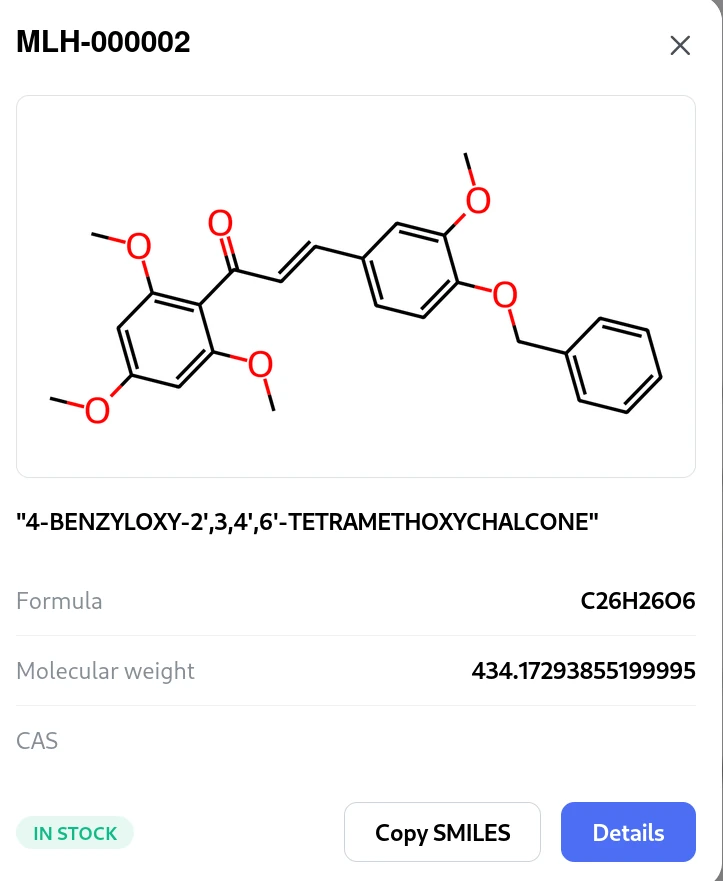
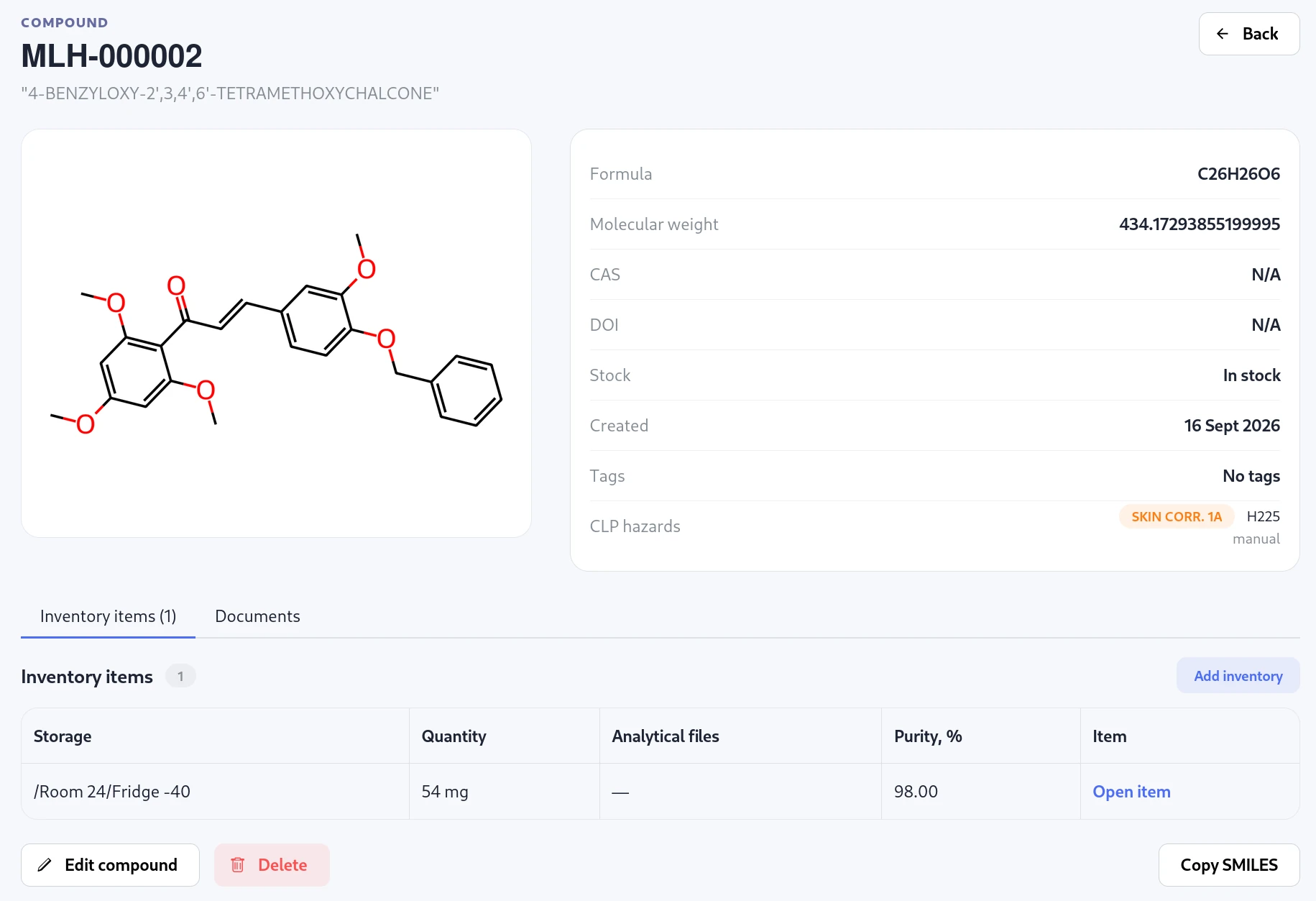
- Open a card for a quick preview; use Details for the complete compound page.
- Keep the structure, calculated molecular properties, CAS, DOI, tags, and CLP hazard classifications with their sources in one record.
- Review candidate names and CAS identifiers from PubChem or CAS integrations before using them.
- See the compound’s inventory items and documents, or copy its SMILES.
02 / Inventory management
Track each physical sample separately.
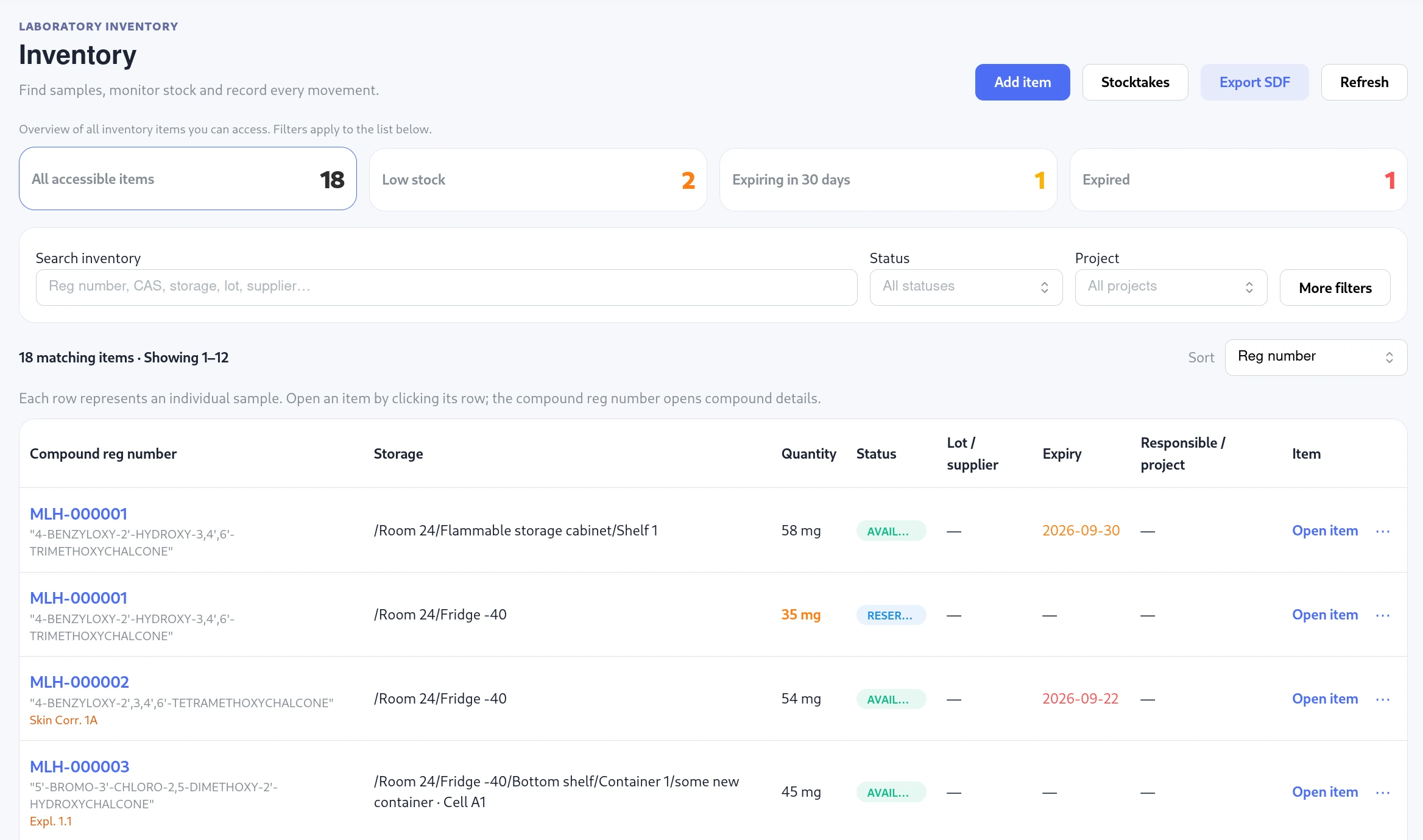
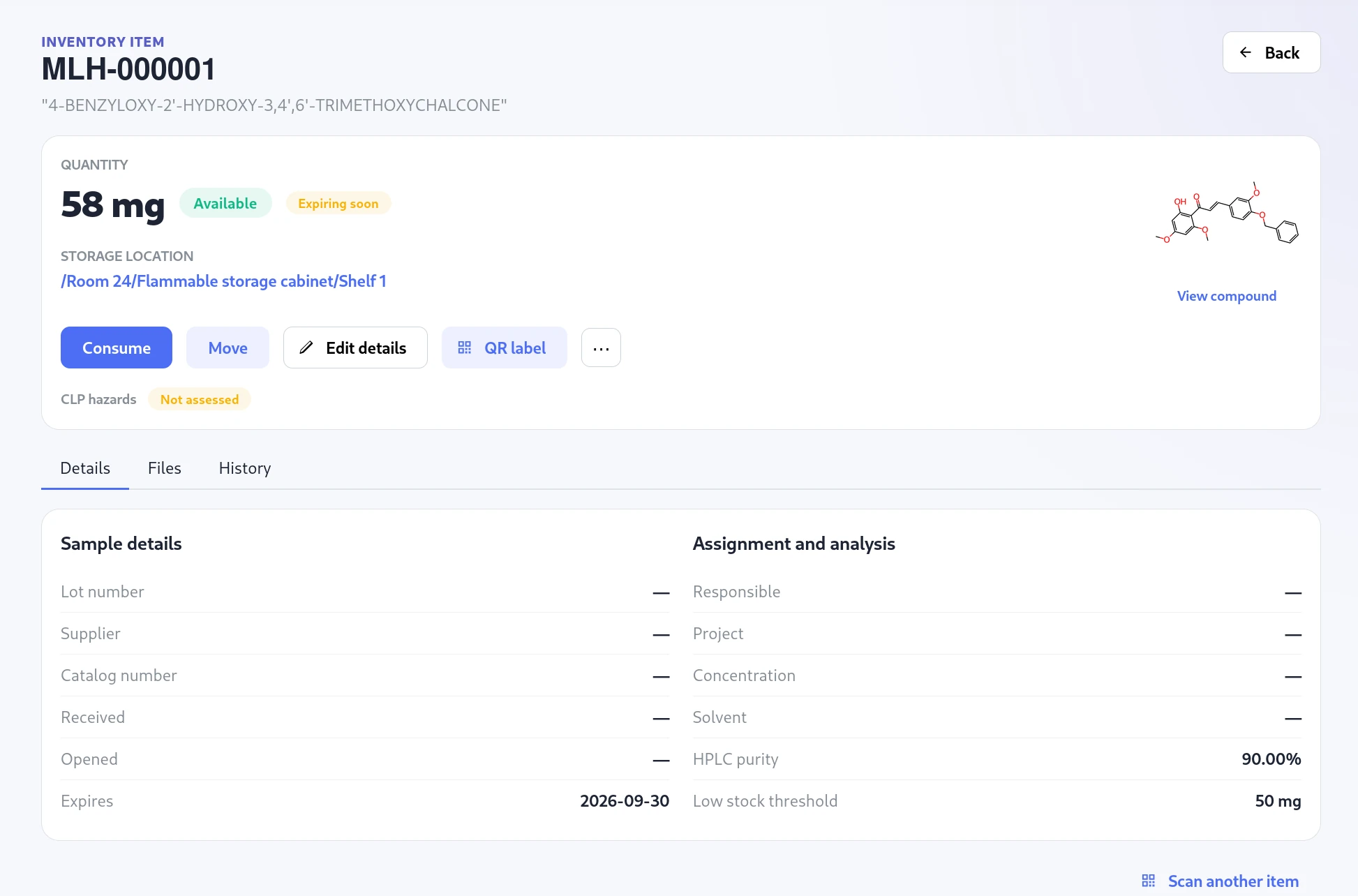
Two vials of the same compound can have different quantities, lots, locations, expiry dates, and analytical results. Each gets its own item record, linked back to the same compound.
- Search and filter inventory by compound, storage, status, supplier, lot, project, or expiry. Export the filtered results to SDF.
- Open an item from its row or the Open item link. The reg number opens the compound instead.
- Record receipts, consumption, corrections, moves, and disposal in the item’s activity history.
- Keep supplier and lot details, dates, a responsible person, project, low-stock threshold, concentration, solvent, and notes where they apply.
- Attach sample documents and NMR, MS, HPLC, or MP files, and record purity.
03 / Storage locations
A storage tree that follows your laboratory.
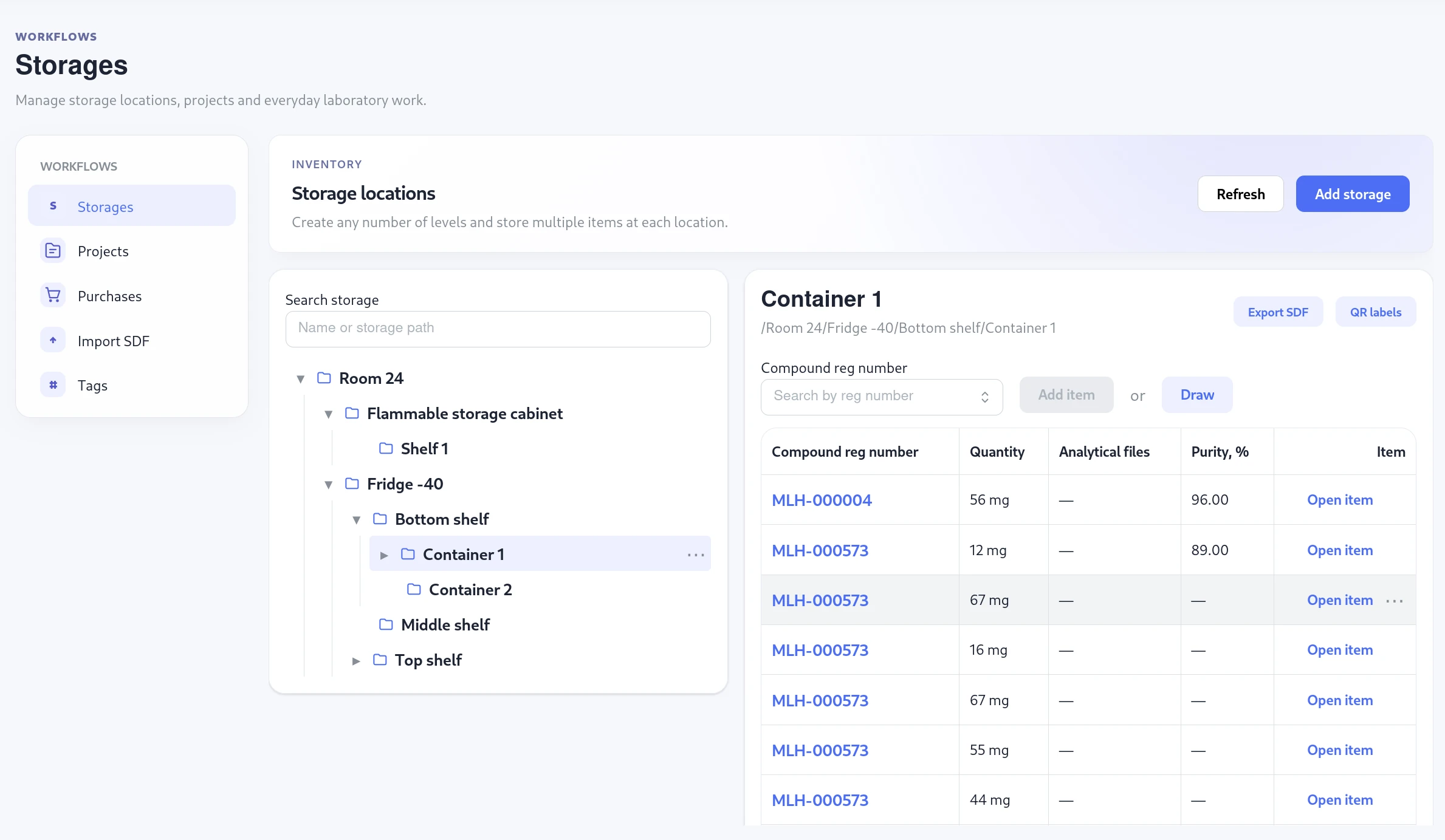
Build the hierarchy you use in practice: room, cabinet or freezer, shelf, and container. There is no fixed number of levels. Search by location name or full path to go straight to the right node.
- Store multiple items directly at any ordinary storage location.
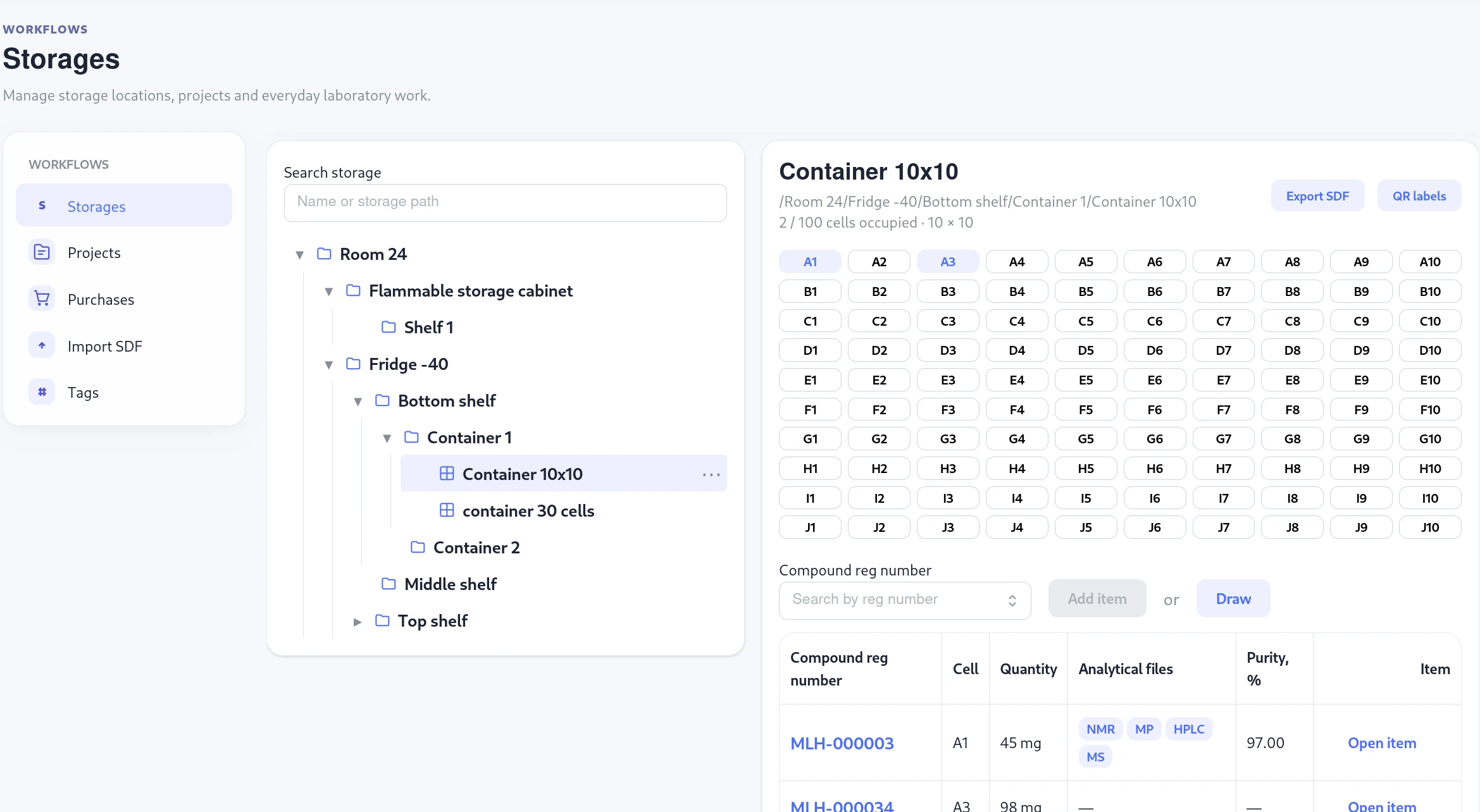
- Make a leaf node a cell container with a grid such as 10 × 10, or a simple cell count. One cell holds one item.
- Containers have a parent and no child locations. View occupied cells and choose a free cell when placing or moving an item.
- Export a populated location to SDF and print QR labels for its items.
04 / Purchasing
Request a reagent. Receive it into inventory.
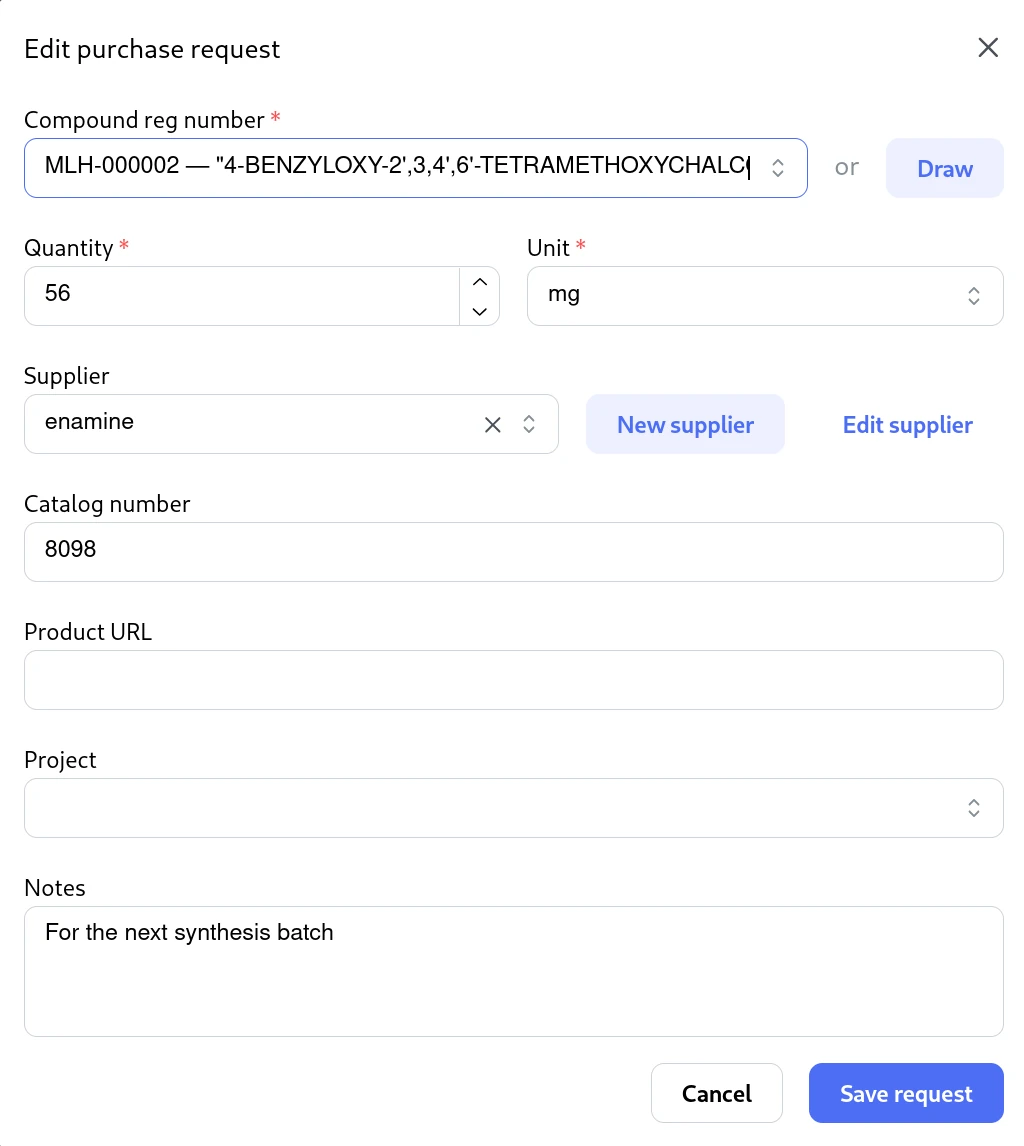
A purchase request starts with a compound from the registry, or a structure drawn in the editor. Choose a supplier, add the quantity, catalogue number or product link, and connect the request to a project if needed.
- Request. A laboratory member creates the request. Suppliers have their own records and can be created from the request form.
- Review. Members with purchase editing access approve or reject it and record their decision.
- Receive. Record a full or partial delivery, its lot and expiry. Choose existing storage, a container cell, or create a location during receipt.
- Place. Split the delivery across multiple destinations. Each placement creates an inventory item; receipt history links back to those items.
05 / Research projects
Open a project and see the work behind it.
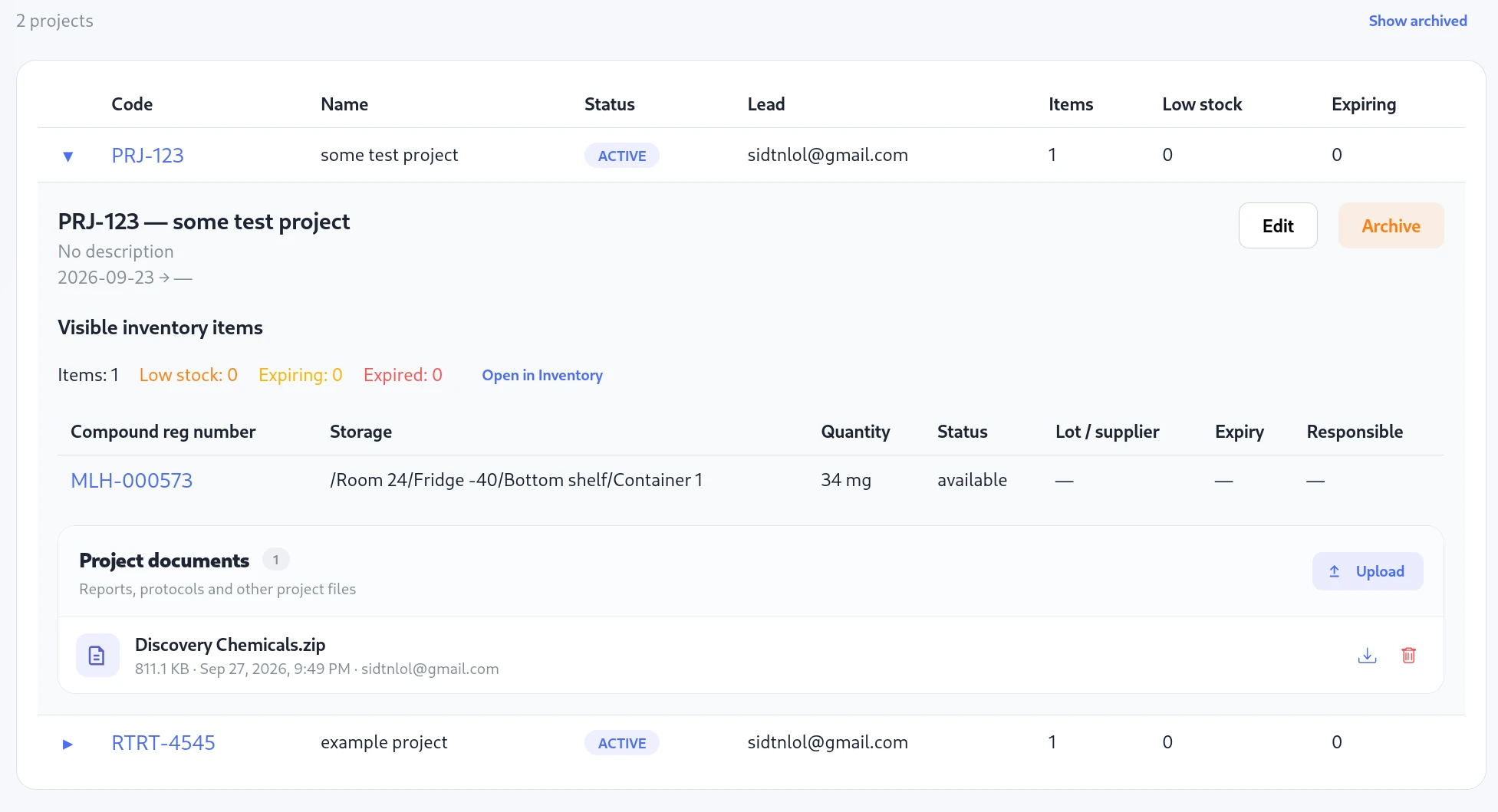
Give the project a code, name, lead, status, and dates. Expand its row to review the associated samples, stock and expiry counts, and project documents. Open those same items in Inventory when you need to search or act on them.
Reports, protocols, and other documents belong to the project. Sample-specific analytical files remain with the item. Storage permissions continue to decide which samples a member can see.
06 / Physical inventory checks
Compare the records with what is on the shelf.
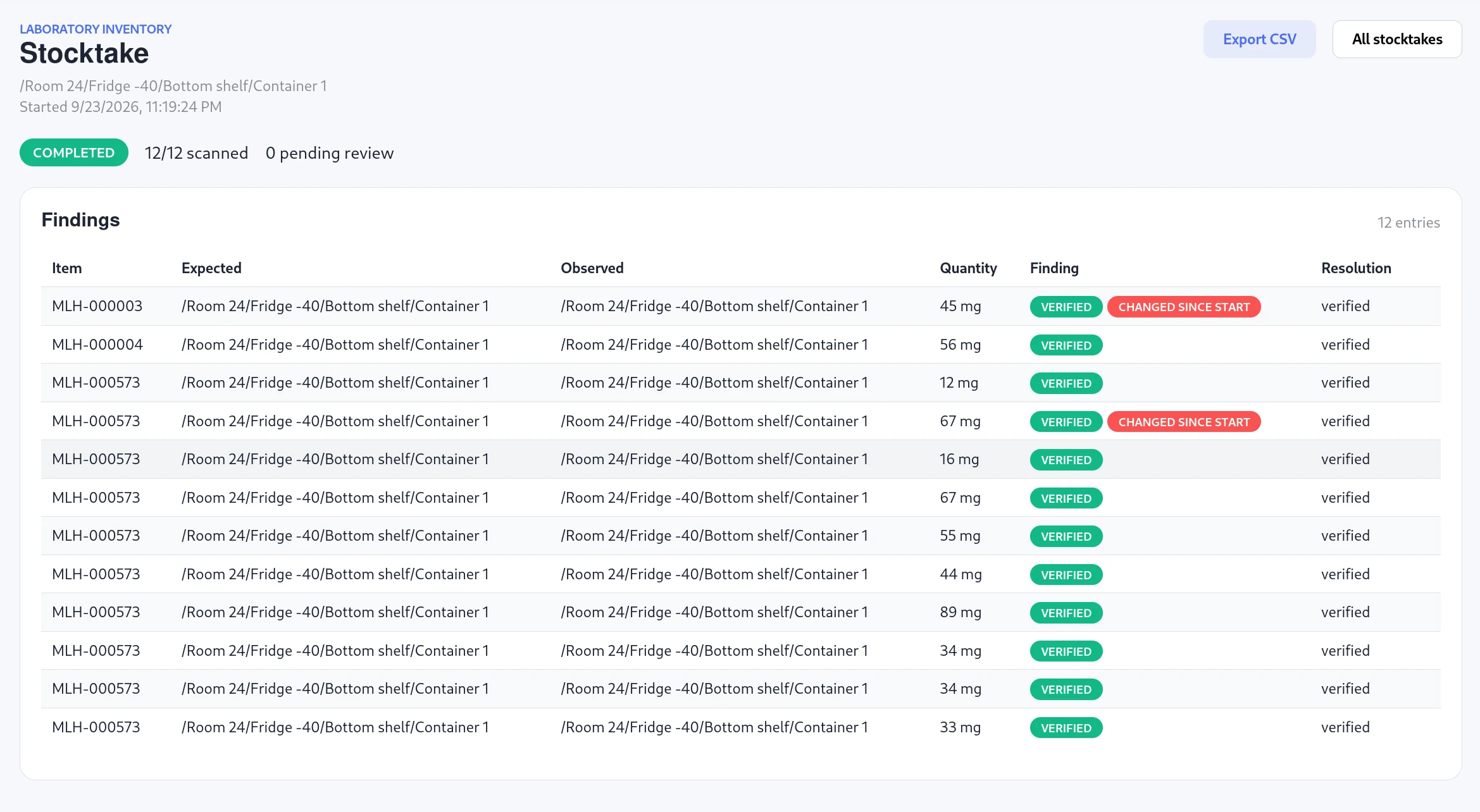
Start a stocktake for the whole laboratory or a storage subtree. Molhaven takes a snapshot of the visible items, so the check has a clear starting point.
- Scan item QR labels to open a live record or identify a sample during the check.
- Record verified samples, missing items, unexpected locations, and quantity differences.
- Review findings before applying an adjustment, move, or disposal. Scanning alone does not change inventory.
- Follow progress, return to the session, and export the findings to CSV.
07 / Scheduled email reports
Send the stock updates your team needs.
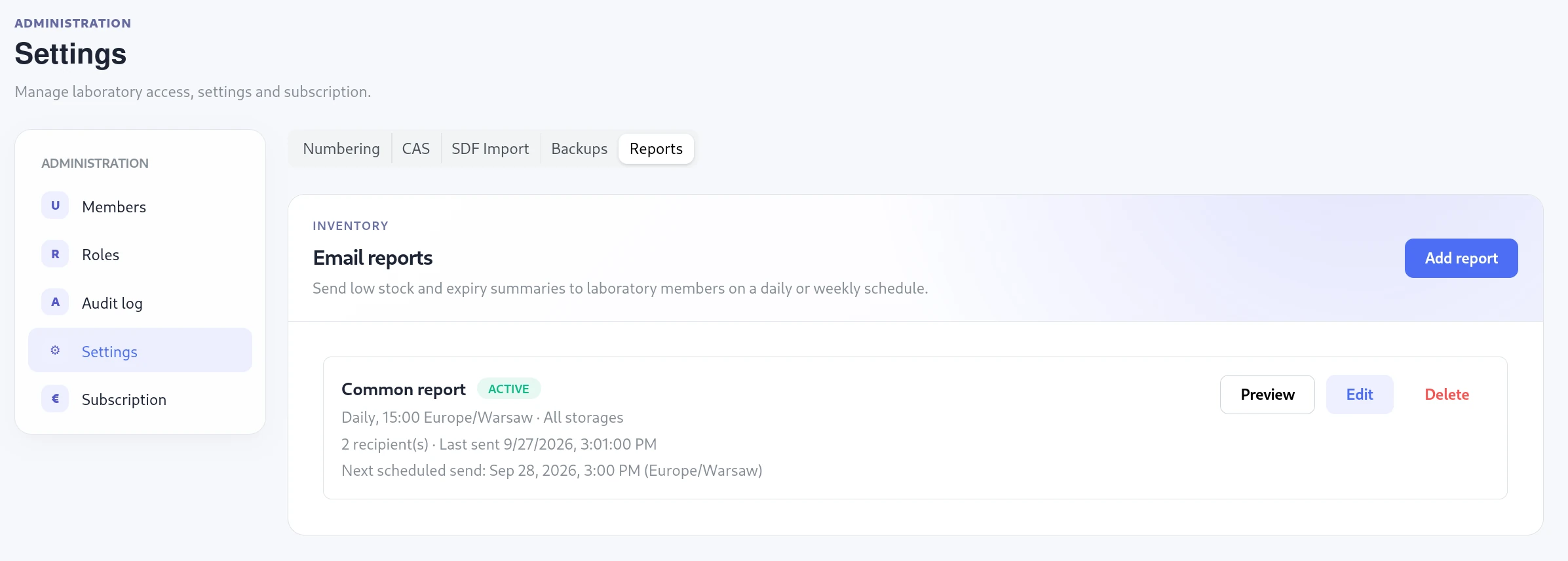
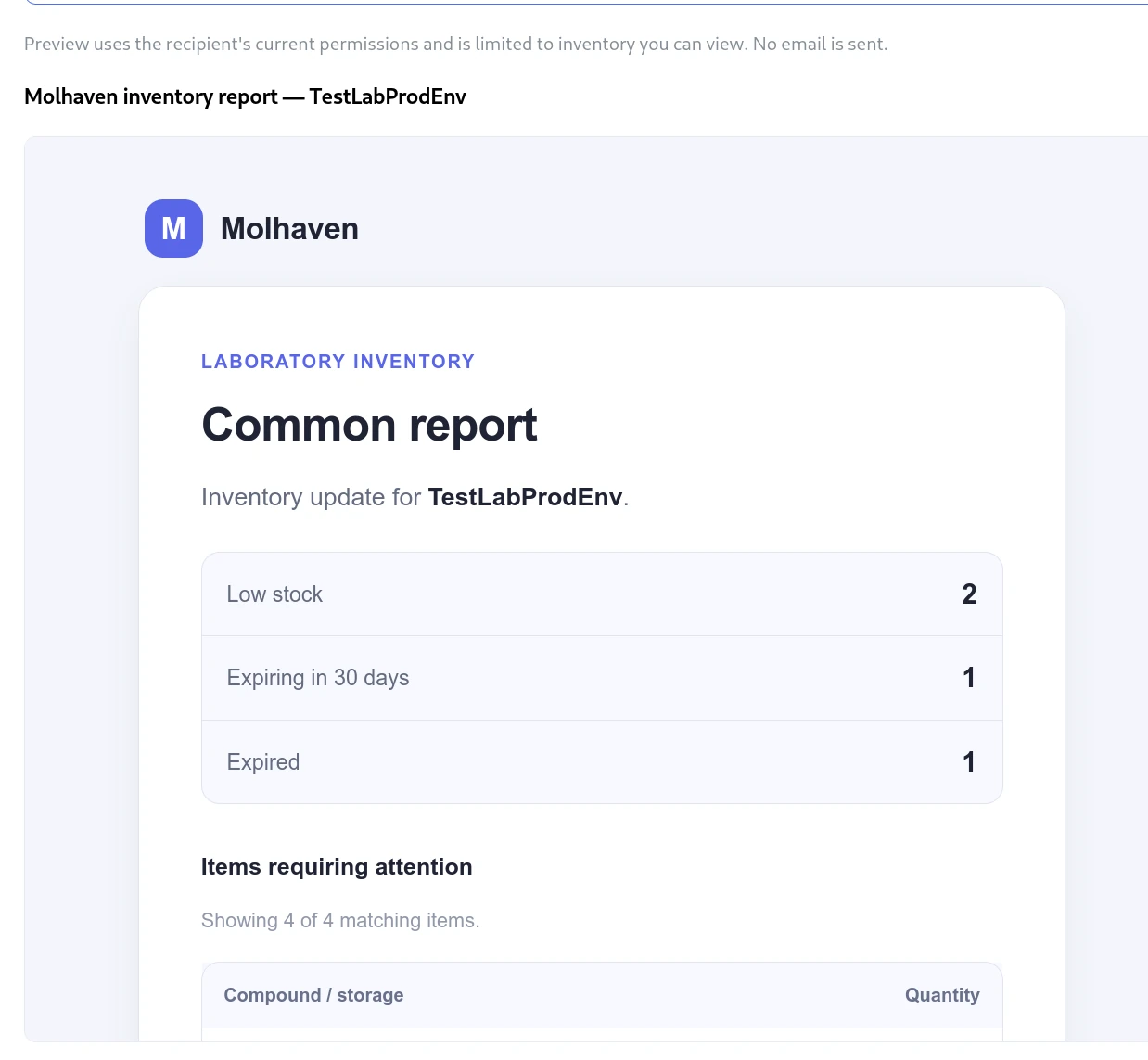
Choose low stock, expiring in the next 30 days, expired items, or a combination. Set a daily or weekly schedule, the send time and timezone, and select active laboratory members as recipients.
- Limit an inventory report to a storage subtree or project.
- Optionally include purchase status totals and recent requests. The project filter applies to purchases; storage filters apply to inventory.
- Preview a report for a selected recipient without sending an email. The preview also respects your own inventory access.
- Every delivery checks the recipient’s current permissions. A member sees only the inventory and purchase data they can access.
- See the next scheduled send and the latest delivery status, or pause the report.
08 / Import and lab setup
Bring the records you already have.
For your first setup, upload existing inventory files from the laboratory workspace. Our team reviews them personally and helps prepare the compound records, items, storage locations, and project context with you.
Already have an SDF file? The self-service workflow lets you map and review it before changes are written.
- Upload and analyse. Read the file’s structure and properties without adding compounds or items yet.
- Map. Match properties to compound fields. Select a storage path mapping to reveal the inventory fields, then map quantity, units, cell, dates, supplier, project, and other sample details as needed.
- Validate. Review warnings, errors, and conflicts before confirming the import.
-
Import or update. Missing storage nodes can be
created from paths such as
/Room 24/Fridge -40/Bottom shelf. Stable item IDs identify existing samples for updates; cell labels place samples in containers.
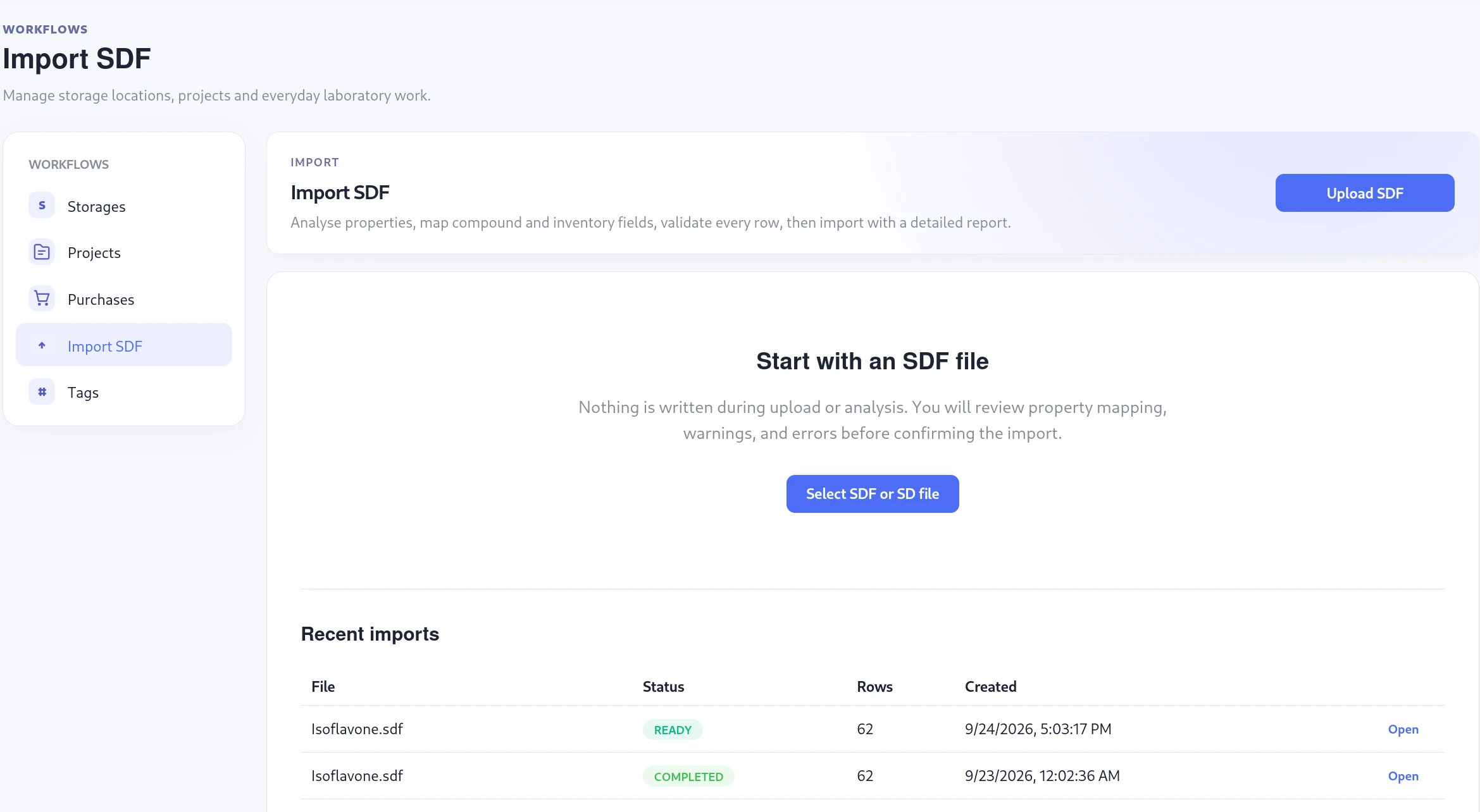
CSV and Excel migration is currently assisted by our team. Direct self-service import uses SDF.
09 / Team access and records
Give people the access their work needs.
Invite members and assign laboratory roles. Limit storage access to a node and its descendants when a member works with only part of the inventory. Project views, item pages, exports, and report deliveries use the same access rules.
Keep everyday work in Workflows and account administration in Administration. Review changes in the audit log, configure numbering and integrations, and schedule backups of the laboratory tree. A restore preview shows what will be created, updated, or removed before confirmation.
Molhaven’s production application infrastructure runs on AWS in Frankfurt, Germany. Protecting laboratory and user data has been a priority throughout design and development. Read about security and deployment.
Common questions
Before you get started.
Is this a compound database or a chemical inventory system?
Both. The compound record holds chemical identity; inventory items describe individual samples. You can search the chemistry and then see the stock you actually have.
How does the chemical inventory barcode system work?
Molhaven prints QR labels with stable links to inventory items. Scan one on a phone to open its current record. Access is checked in the application, and the same QR labels can be used during a stocktake.
Can you help move our Excel or CSV inventory?
Yes. Upload your current files from a new laboratory workspace. Our team reviews your data and helps map compounds, items, storage, and projects. You can also import SDF files yourself.
Can we start with a small collection?
Yes. Create storage locations and add compounds and items manually, or start with an SDF import. You can expand the storage tree and add projects and reports as your lab needs them.
Start with your own laboratory
We’ll help you get the first records right.
Try the workflow with your samples. Bring your existing files, or start manually with a few compounds and storage locations.